Browse and use icons
The icon sets in Highend (Lucide line icons and two icon fonts), the icon picker in WPBakery, and the icon values that elements, shortcodes and menus use.
Highend comes with three icon sets: Lucide, a set of line icons that stay sharp at any size, and two icon fonts, IcoMoon and FontAwesome. You pick icons with the icon picker in WPBakery and in Highend Options, or look up a name on the Icons admin page.
Icon sets
1,866 icons1,262 iconsNames are prefixed hb-moon-, for example hb-moon-star. Offered everywhere icons are.
786 iconsNames are prefixed icon-, for example icon-star. Offered everywhere icons are.
Lucide icons are drawn on the page as inline SVG, only where a page uses them, so they add nothing to pages without them. They take the text color and size like a font icon. Lucide has no brand logos: for social networks and other brands, use FontAwesome or IcoMoon, or the Social Icons element.
The icon picker in WPBakery
The Icon element, the Icon List element and each of its items have an icon field: a preview, the icon's value, and a Choose icon button.
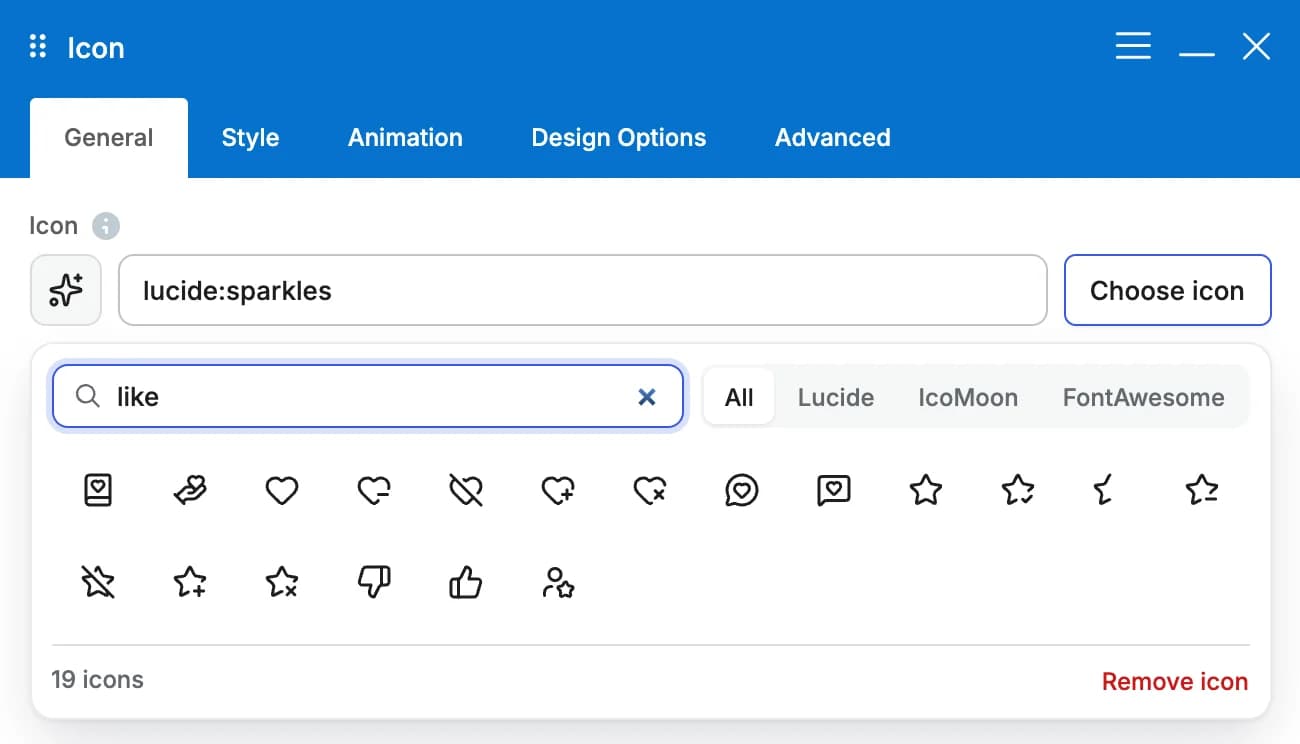
- Click Choose icon to open the picker right below the field, then click an icon to use it.
- Search by name, or by what an icon shows: Lucide icons also match their tags, so "like" finds the heart and the thumbs up.
- Use All, Lucide, IcoMoon or FontAwesome to browse one set at a time. The count under the grid says how many icons match.
- Remove icon clears the field. In an Icon List item, an empty field uses the list's marker.
- You can also type or paste a value into the field.
Icon values
Every icon field saves a plain text value, so shortcodes stay readable:
| Value | Set |
|---|---|
lucide:arrow-right | A Lucide icon. Older names of icons Lucide has since renamed keep working. |
hb-moon-heart | An IcoMoon icon. |
icon-star | A FontAwesome icon. |
A Lucide value with a name that doesn't exist shows nothing.
Icons from earlier versions
Icon font values you added before keep working everywhere: in elements, shortcodes, menus and Highend Options. The new Icon and Icon List elements take icon font values too, so you can paste a name you already use.
These places offer the icon fonts only, not Lucide:
- Icon settings in Highend Options and in the page settings (the 404 page's background icon, the pre-footer callout and top bar buttons, and the Contact Template's contact details). They have a Choose icon button that opens the same picker with IcoMoon and FontAwesome.
- The icon picker for menu items under AppearanceMenus, in Highend Menu Options, which shows an icon before that menu item.
- The icon text fields of older elements and shortcodes, such as Icon Box, Icon Column, Icon Feature and Button. Paste a FontAwesome or IcoMoon name into them.
Look up an icon font name
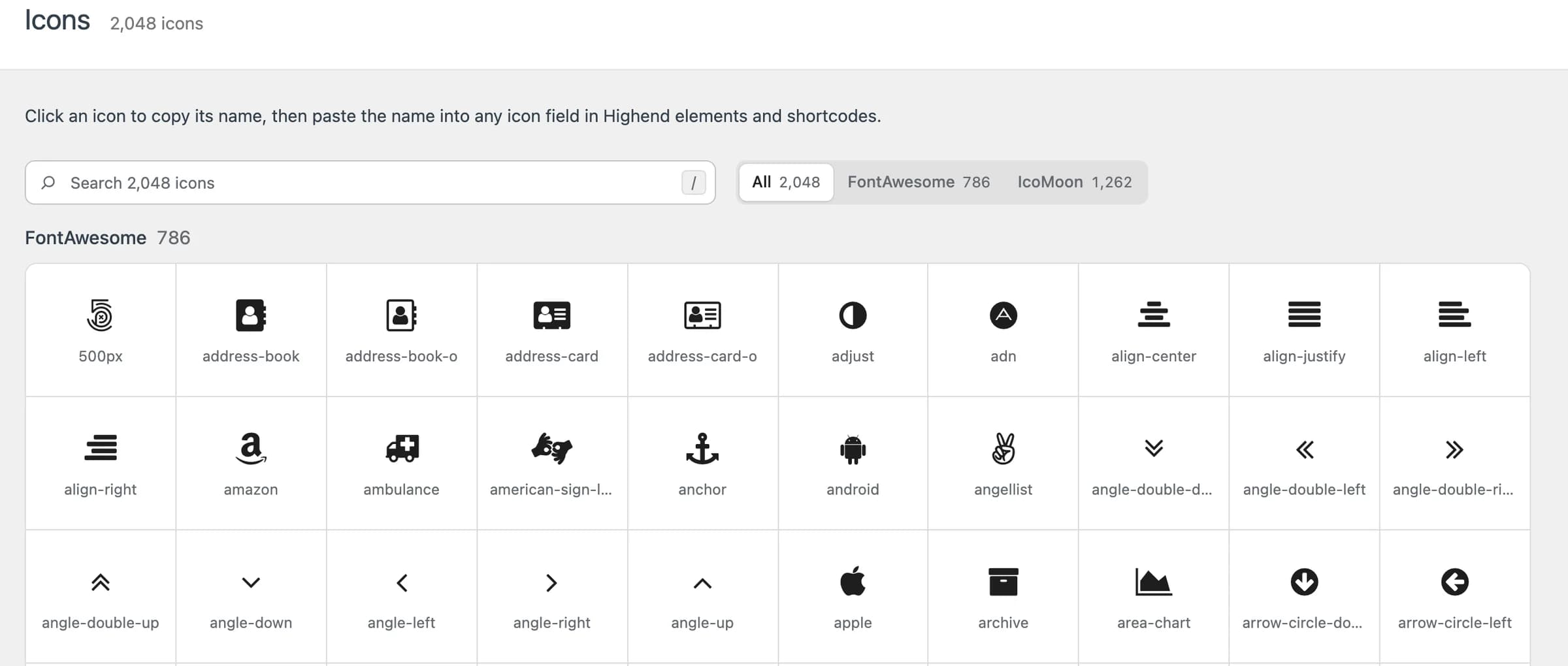
Go to HighendIcons to browse the two icon fonts. Click an icon to copy its name, then paste it into an icon field. Use the search box to filter by keyword (press / anywhere on the page to jump into it), or the All / FontAwesome / IcoMoon filter to browse one set at a time. Lucide icons aren't on this page: find them with the icon picker in WPBakery.