Lightbox
How images, galleries and videos open in Highend's lightbox, how visitors browse, zoom and close it, and the switch that turns it off.
Highend opens image links, galleries and videos in its own lightbox. The image grows out of the one that was clicked, visitors browse with arrows, the keyboard, a swipe or the thumbnails, zoom in to look closer, and close it with Esc or a swipe down. It replaced the older prettyPhoto lightbox in Highend 4.6.3, and everything that opened in prettyPhoto opens here without changes.
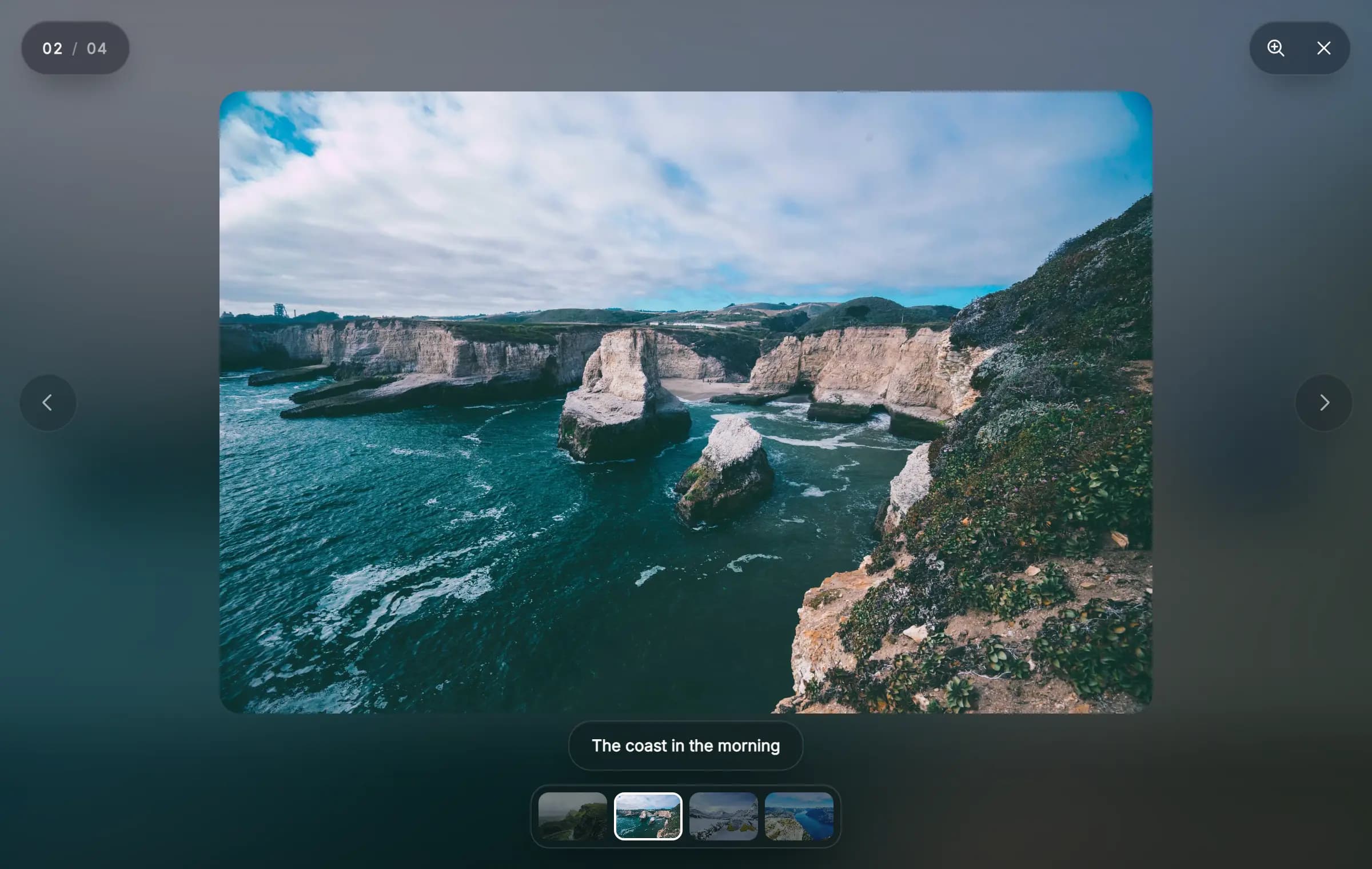
What opens in it
- Image links set to open in a lightbox: Image Frame with Open lightbox, the slides of Simple Slider and Laptop Slider, and WPBakery's Single Image, Image Gallery, Image Carousel and grids when their click action opens a lightbox.
- WordPress galleries whose Link to is Media File. Each gallery opens as one set, with its captions.
- Highend galleries: an item of the Gallery post type opens its whole photo set from the Gallery elements, templates and widgets, and a gallery post's slider opens its photos.
- Featured images on a post's own page.
- Videos: the Video Lightbox element, Video Embed set to In Lightbox, and older lightbox links to YouTube, Vimeo, TikTok or a video file. Videos open in their own shape, vertical ones too.
- Mixed galleries: images and videos with the same group name open together. A Video Lightbox's Gallery Group matches an Image Frame's Gallery REL attribute.
Images and galleries from the block editor aren't opened by the theme's lightbox. Use the block's own Expand on click option for those.
Browse, zoom and close
| To | Do this |
|---|---|
| See the next or previous item | Click the arrows at the sides, press the Left and Right arrow keys, swipe, or click a thumbnail. Home and End jump to the first and last item. |
| Zoom in | Click the image or tap it twice, pinch, use the zoom button, press +, or scroll with Ctrl held. Drag to move around. - zooms out and 0 goes back to the full image. |
| Close | Press Esc, click the close button, or swipe down on a touch screen. |
- The counter at the top shows where you are (02 / 04). The row of thumbnails shows when two or more items open together and each has a thumbnail.
- The caption under the image comes from the link: an Image Frame's Image Caption, a gallery image's caption or description, or a video's Title.
- The buttons fade out while the mouse rests and come back when it moves.
- Keyboard focus stays inside the lightbox while it's open, and goes back to the link that opened it when it closes.
- Visitors who prefer reduced motion see fades instead of the image growing out of its thumbnail.
Turn it off
If you use a lightbox plugin instead, turn off the theme's lightbox so the two don't both open:
Open Highend Modules
Go to HighendHighend OptionsHighend Modules and turn on Enable/Disable Highend Modules, which shows the module switches.
Turn off Lightbox
Turn off Lightbox and save. Image links, galleries and video links then open the way your plugin (or the browser) opens them.
Onhb_module_prettyphotoOpens image links, galleries and video links in the theme's lightbox. Turn it off to use a lightbox plugin instead. The Video Lightbox element works either way.
Only a small loader script loads with the page. The lightbox itself loads when a page has something to open in it, or on the first click.
For developers
Links and code written for prettyPhoto keep working with the Lightbox switch on:
rel="prettyPhoto"andrel="lightbox"links open in the lightbox, andrel="prettyPhoto[name]"links with the same name open together.- prettyPhoto's frame links (
page.html?iframe=true&width=800&height=600) open the page in a sandboxed frame, and#idlinks show a copy of that element's content. $( 'a.my-links' ).prettyPhoto()marks links for the lightbox, and$.prettyPhoto.open( images, titles, descriptions )opens a list of images or videos.
To open an image from your own markup, add data-hb-lightbox="image" to the link:
<a href="/photos/coast-large.jpg"
	data-hb-lightbox="image"
	data-hb-lightbox-group="trip"
	data-hb-lightbox-caption="The coast in the morning">
	<img src="/photos/coast-small.jpg" alt="Rocky coast and the open sea">
</a>
For a video, let PHP work out the player and write the attributes, the way the theme's elements do:
$url   = 'https://www.youtube.com/watch?v=aqz-KE-bpKQ';
$video = highend_lightbox_video( $url );
if ( $video ) {
	highend_lightbox_enqueue();
	$attrs = highend_lightbox_video_attrs( $video, array(
		'caption' => 'Our story',
		'group'   => 'films',
	) );
	echo '<a href="' . esc_url( $url ) . '"' . $attrs . '>Watch the video</a>';
}
highend_lightbox_video() takes the same links as the Video Lightbox element's Video field and returns false for a link it can't play. highend_lightbox_video_attrs() also takes ratio (a number) and poster (an image URL).
Prop
Type
Call highend_lightbox_enqueue() in PHP to load the lightbox on a page, for example when the Lightbox switch is off. The filters for the lightbox, such as highend_lightbox_embed_hosts for the list of video players, are listed under Filter hooks.